> ## Documentation Index
> Fetch the complete documentation index at: https://docs.kobble.io/llms.txt
> Use this file to discover all available pages before exploring further.
# Integrating Crisp
> Learn how to set up Crisp in your customer portal
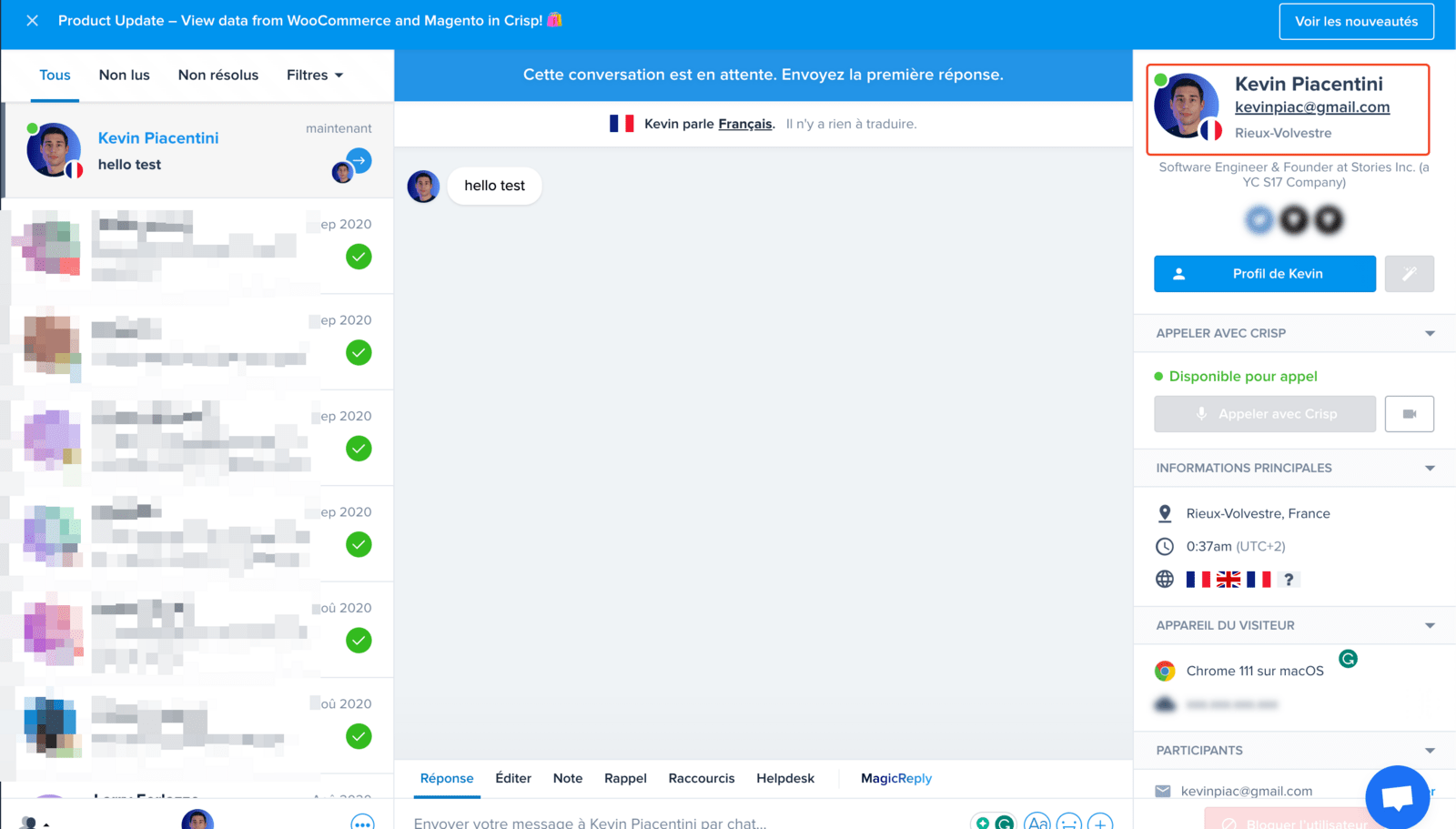
Adding Crisp to your customer portal is a great idea to get in touch with your customers, provide customer support and also enrich your CRM.
Kobble lets you add a custom script to your customer portal.
We'll see how you can use this feature to integrate Crisp and add the user's email, name and id to your favorite CRM.
## Pre-requisites
* A Crisp account
* Having a [customer portal](/product/customer-portal/overview) configured on Kobble
## Installation
1. Go to your [Crisp websites settings](https://app.crisp.chat/settings/websites/) dashboard
2. Click the **integration** button for the website of your choice and choose HTML
3. Copy the HTML snippet provided by Crisp
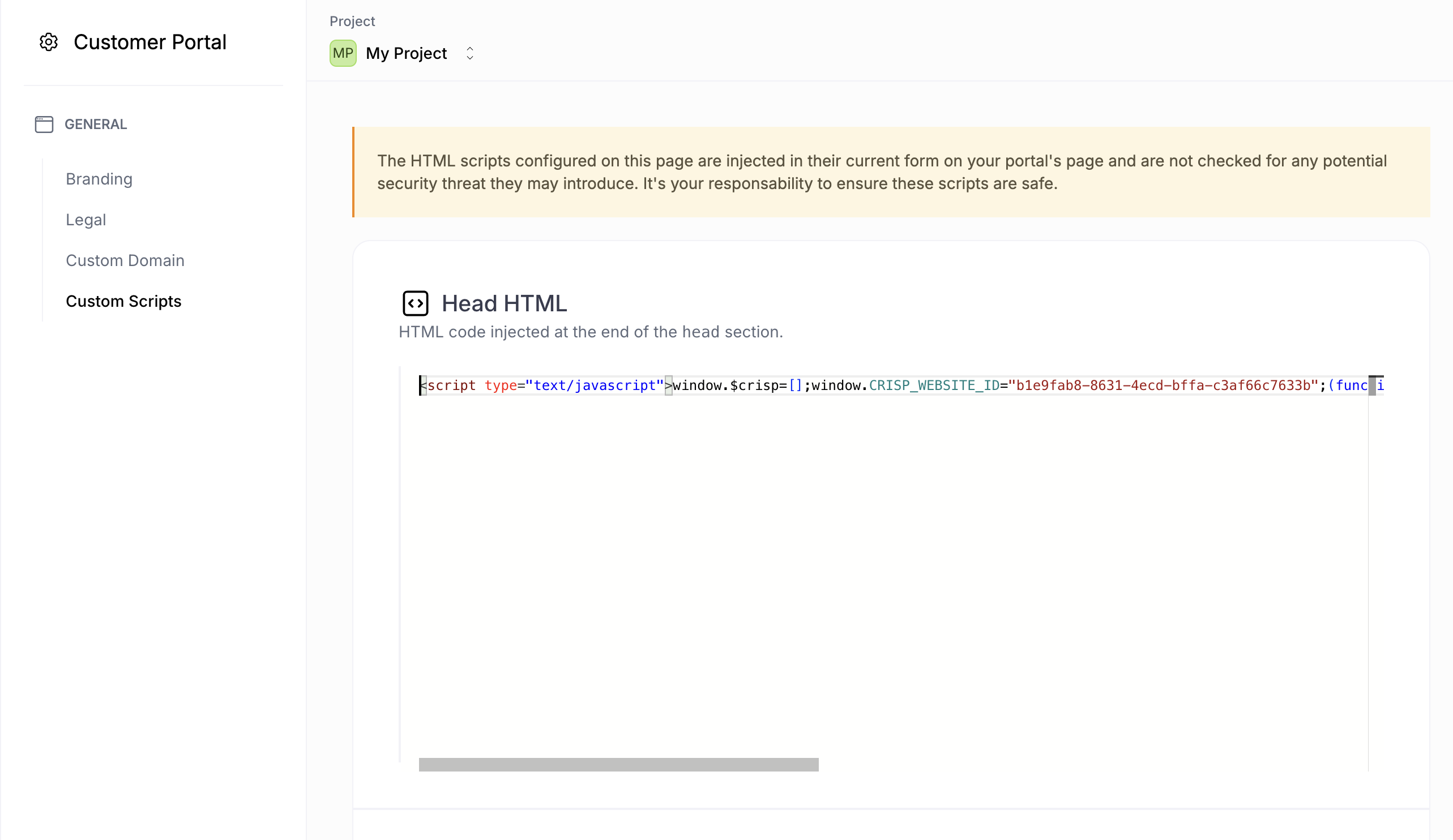
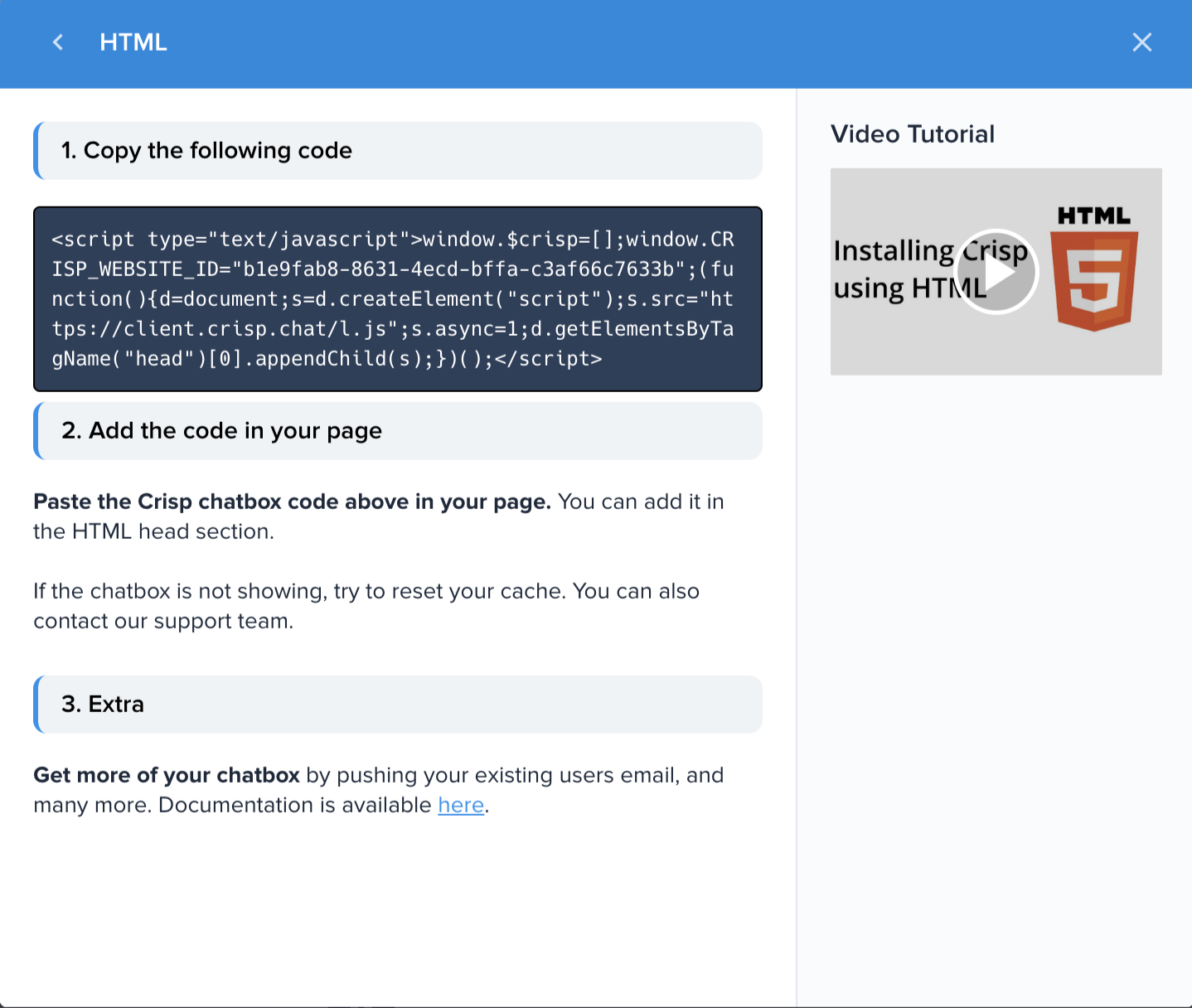 4. Go to your [Customer Portal Scripts settings](https://app.kobble.io/p/portal/scripts) on Kobble
5. Paste the HTML snippet in the **Head HTML** field
4. Go to your [Customer Portal Scripts settings](https://app.kobble.io/p/portal/scripts) on Kobble
5. Paste the HTML snippet in the **Head HTML** field
 6. Right after the Crisp snippet, add the following script to send the user's email, name and id to your CRM
```html theme={null}
```
This snippet uses the `kobble.user` object to get the user's email and name and inject them into Crisp's CRM. You can find more information about the kobble.user object in the [Custom Scripts](/product/customer-portal/custom-scripts#accessing-users-data) section of this doc.
Et voilà! Crisp is now integrated into your customer portal.
6. Right after the Crisp snippet, add the following script to send the user's email, name and id to your CRM
```html theme={null}
```
This snippet uses the `kobble.user` object to get the user's email and name and inject them into Crisp's CRM. You can find more information about the kobble.user object in the [Custom Scripts](/product/customer-portal/custom-scripts#accessing-users-data) section of this doc.
Et voilà! Crisp is now integrated into your customer portal.
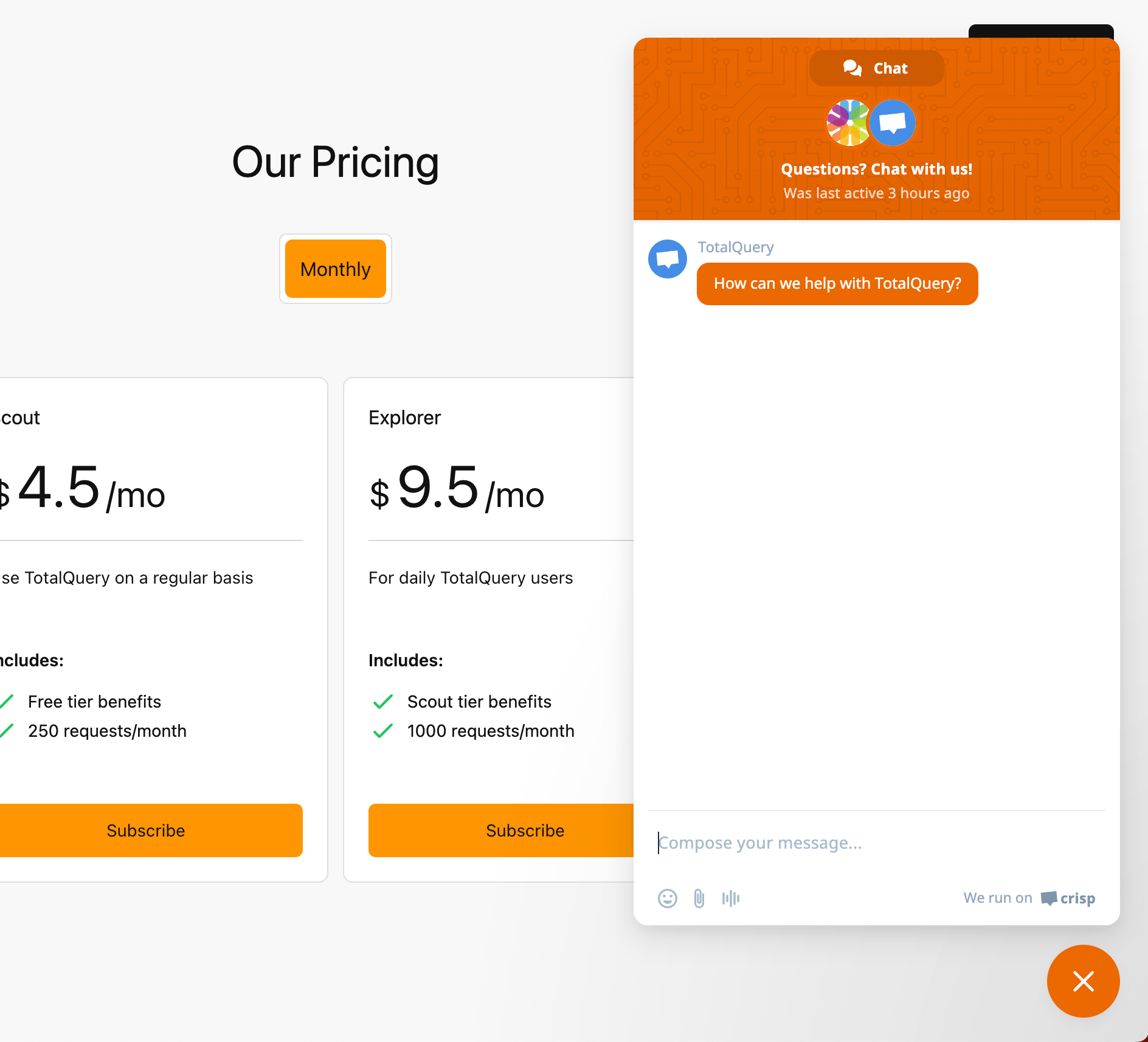 And your users will flow into your CRM.